
Uploading photos to Instagram from a PC without using external software is not possible… are you sure?
Unless we take a photo directly with a smartphone or tablet, uploading photos to Instagram from a PC does not seem possible.
This can be a problem if we want to share images that we first need to edit on the computer or that we have already saved on our hard drive or an external cloud. This issue is even more significant for a company wanting to promote itself on Instagram, as it involves steps that take time and therefore money.
Using third-party software can lead to deletion of #hashtags or even the suspension of the account by the most well-known and widely used social network in the world related to photography.
In reality, uploading photos to Instagram from a PC is much more simple than one might think, without any use of third-party software.
Let's see how to do it in a few simple steps. I should mention that I personally tested this procedure using the browser Google Chrome
First of all, you need to log into your Instagram account from the computer.
In an area free of images or text, right-click and in the window that opens select the option "Inspect”.
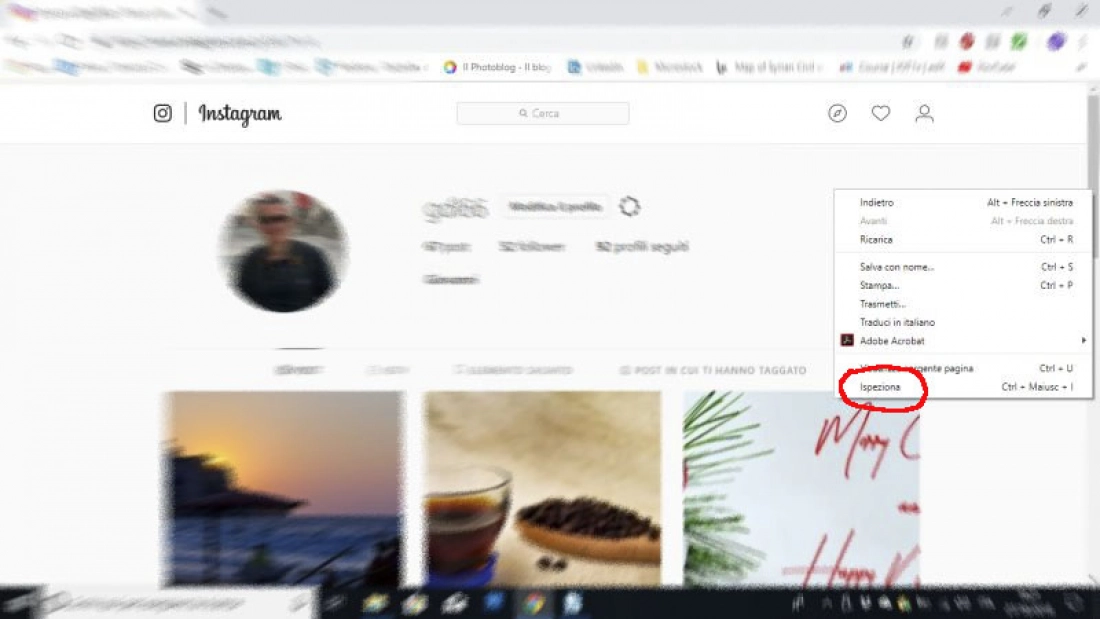
At this point, the screen splits in half.
What interests us is the "Toggle Device Toolbar" on the right side, select it and make it turn blue. (as in the photo below)
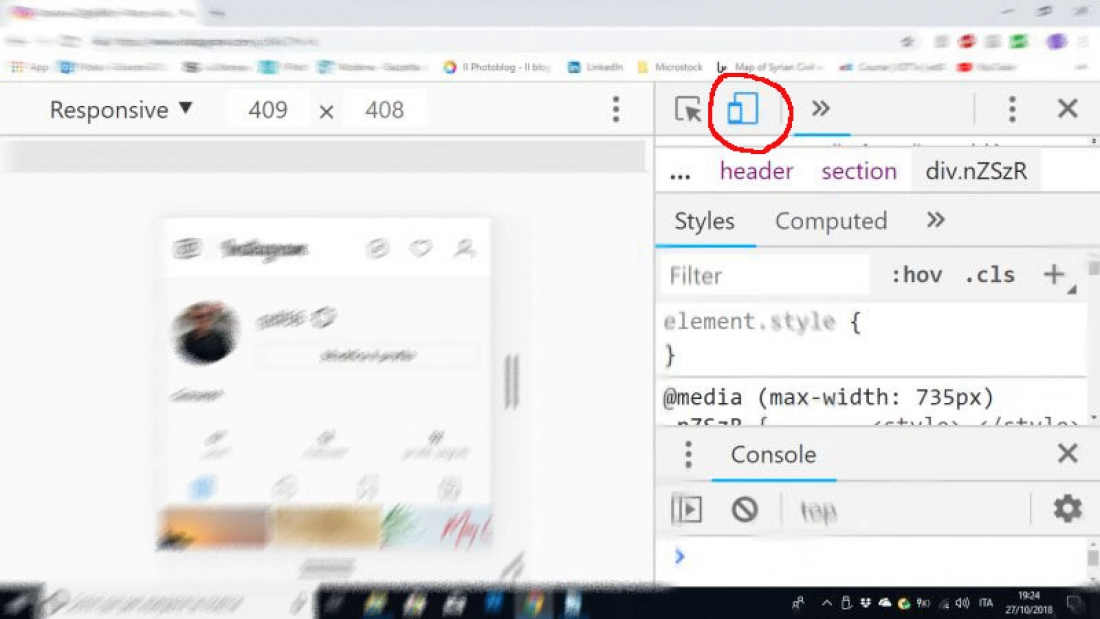
At this point, you just need to do a refresh of the page and the button will "magically" appear on the left side [+].
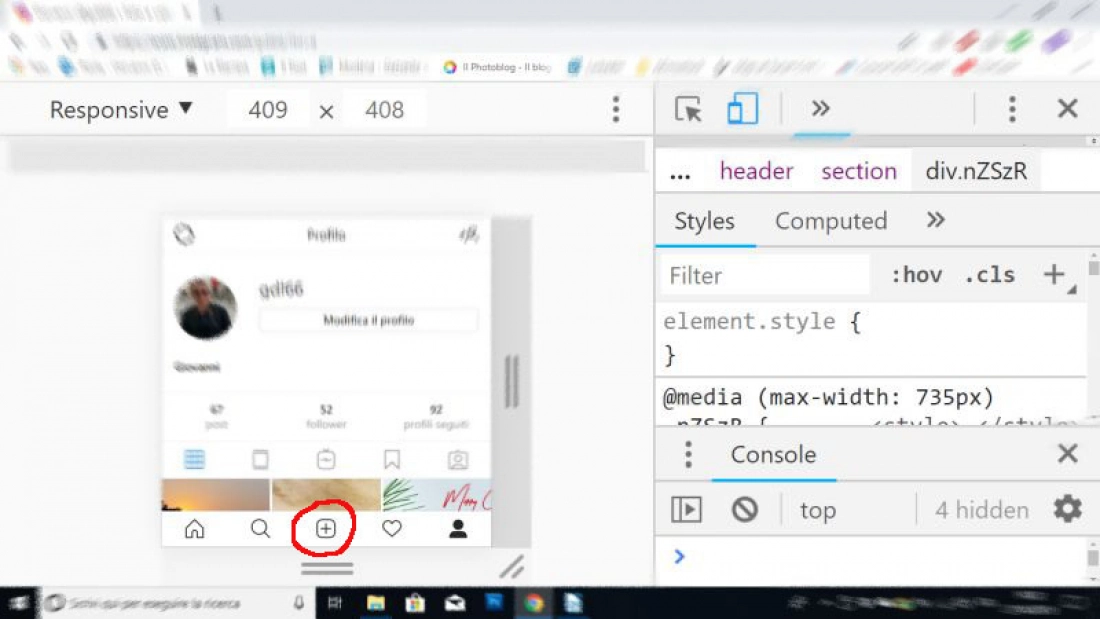
The procedure is complete. We have simply made Instagram Web believe that we are using a smartphone or tablet instead of a computer.
Using this button we can start to upload our shots to Instagram directly from the computer, without any need to transfer them first from the computer to a tablet or smartphone.
In addition to images, it is obviously also possible to upload #hashtags and comments.
Once the image upload to Instagram is finished, deselect the “Toggle Device Toolbar,” which will then turn gray.
This little trick will work as long as Instagram or Google do not make changes to their software.
If you want to see how to use Instagram in a professional setting, here is a suggestion.